Pages

Tuesday, 18 September 2012

Block level storage vs. file level storage: A comparison

Block level storage vs. file level storage: A comparison 
Takeaway: Block level storage sales have gone through the roof as more businesses realize its flexibility. File level storage is still a better option when you just need a place to dump raw files. Learn more about when to use which type of storage.

Long gone are the days of one file server sitting in a corner humming away while employees save their files to the local hard drives. Today, storage devices are abstracted from the server.

IT pros are now required to make important decisions when choosing storage for a particular task. To help with your decision making process, here’s an overview of some of the high-level differences between block level storage and file level storage. I also provide information about when to use which type of storage.

Block level storage 
Anyone who has used a Storage Area Network (SAN) has probably used block level storage before. Block level storage presents itself to servers using industry standard Fibre Channel and iSCSI connectivity mechanisms. In its most basic form, think of block level storage as a hard drive in a server except the hard drive happens to be installed in a remote chassis and is accessible using Fibre Channel or iSCSI.

When it comes to flexibility and versatility, you can’t beat block level storage. In a block level storage device, raw storage volumes are created, and then the server-based operating system connects to these volumes and uses them as individual hard drives. This makes block level storage usable for almost any kind of application, including file storage, database storage, virtual machine file system (VMFS) volumes, and more. You can place any kind of file system on block level storage. So, if you’re running Windows, your volumes will be formatted with NTFS; VMware servers will use VMFS.

File level storage devices are often used to share files with users. By creating a block-based volume and then installing an operating system and attaching to that volume, you can share files out using that native operating system. Remember, when you use a block-based volume, you’re basically using a blank hard drive with which you can do anything.

When it comes to backup, many storage devices include replication-type capabilities, but you still need to think about how to protect your workloads. With this type of storage, it’s not unusual for an organization to be able to use operating system native backup tools or third-party backup tools such as Data Protection Manager (DPM) to back up files. Since the storage looks and acts like a normal hard drive, special backup steps don’t need to be taken.

With regard to management complexity, block-based storage devices tend to be more complex than their file-based counterparts; this is the tradeoff you get for the added flexibility. Block storage device administrators must:
Carefully manage and dole out storage on a per server basis.
Manage storage protection levels (i.e., RAID).
Track storage device performance to ensure that performance continues to meet server and application needs.
Manage and monitor the storage communications infrastructure (generally iSCSI or Fibre Channel).

From a use case standpoint, there are a lot of applications that make use of this block-level shared storage, including:

Databases. This is especially true when you want to cluster databases, since clustered databases need shared storage.
Exchange. Although Microsoft has made massive improvements to Exchange, the company still does not support file level or network-based (as in, CIFS or NFS) storage. Only block level storage is supported.
VMware. Although VMware can use file level storage via Network File System (NFS), it’s very common to deploy VMware servers that use shared VMFS volumes on block level storage.
Server boot. With the right kind of storage device, servers can be configured to boot from block level storage. 

File level storage 
Although block level storage is extremely flexible, nothing beats the simplicity of file level storage when all that’s needed is a place to dump raw files. After all, simply having a centralized, highly available, and accessible place to store files and folders remains the most critical need in many organizations. These file level devices — usually Network Attached Storage (NAS) devices — provide a lot of space at what is generally a lower cost than block level storage.

File level storage is usually accessible using common file level protocols such as SMB/CIFS (Windows) and NFS (Linux, VMware). In the block level world, you need to create a volume, deploy an OS, and then attach to the created volume; in the file level world, the storage device handles the files and folders on the device. This also means that, in many cases, the file level storage device or NAS needs to handle user access control and permissions assignment. Some devices will integrate into existing authentication and security systems.

On the backup front, file level storage devices sometimes require special handling since they might run non-standard operating systems, so keep that in mind if you decide to go the file level route.

With the caveat that you may need to take some steps with regard to authentication, permissions, and backup, file level-only devices are usually easier to set up than block level devices. In many cases, the process can be as simple as walking through a short configuration tool and moving forward.

If you’re looking for storage that screams — that is, if you need high levels of storage performance — be very careful with the file level option. In most cases, if you need high levels of performance, you should look at the block level options. Block level devices are generally configurable for capacity and performance. Although file-level devices do have a performance component, capacity is usually the bigger consideration.

File level use cases are generally: 

Mass file storage. When your users simply need a place to store files, file-level devices can make a lot of sense.
VMware (think NFS). VMware hosts can connect to storage presented via NFS in addition to using block level storage

Thursday, 6 September 2012

What is SUID and how to set SUID in Linux/Unix?


What is SUID and how to set SUID in Linux/Unix?

There are some other special permission apart from the normal file permissions read, write and execute. They are SUID, SGID, Sticky Bit, ACL’s and SELinux etc for granular file/folder management by administrator. In this post we will see
1)What’s SUID?
2)How to set SUID?
3)Where to us SUID?
What is SUID and how to set it in Linux?
SUID (Set owner User ID up on execution) is a special type of file permissions given to a file. Normally in Linux/Unix when a program runs, it inherits access permissions from the logged in user. SUID is defined as giving temporary permissions to a user to run a program/file with the permissions of the file owner rather that the user who is running it. In simple words users will get file owner’s permissions as well as owner UID and GID when executing a file/program/command.
The above sentence is bit tricky and should be explained in depth with examples.
Learn SUID with examples:
Example1: passwd command
When we try to change our password we will use passwd command which is owned by root. This passwd command file will try to edit some system config files such as /etc/passwd, /etc/shadow etc when we try to change our password. Some of these files cannot be opened or viewed by normal user only root user will have permissions. So if we try to remove SUID and give full permissions to this passwd command file it cannot open other files such as /etc/shadow file to update the changes and we will get permission denied error or some other error when tried to execute passwd command. So passwd command is set with SUID to give root user permissions to normal user so that it can update /etc/shadow and other files.
Example2: ping command
Similarly if we take ping command, when we have to execute this command internally it should open socket files and open ports in order to send IP packets and receive IP packets to remote server. Normal users don’t have permissions to open socket files and open ports. So SUID bit is set on this file/command so that whoever executes this will get owner (Root user’s) permissions to them when executing this command. So when this command start executing it will inherits root user permissions to this normal user and opens require socket files and ports.

Example3: crontab and at command.
When scheduling the jobs by using crontab or at command it is obious to edit some of the crontab related configuration files located in /etc which are not writable for normal users. So crontab/at commands are set with SUID in-order to write some data.
How can I setup SUID for a file?
SUID can be set in two ways
1) Symbolic way(s, Stands for Set) 
2) Numerical/octal way(4)
Use chmod command to set SUID on file: file1.txt
Symbolic way:
chmod u+s file1.txt
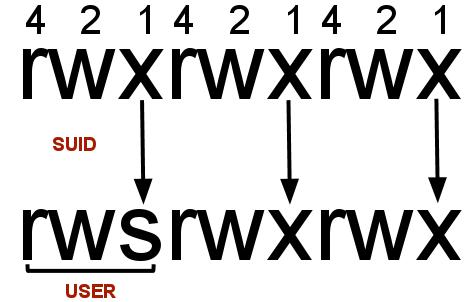
Here owner permission execute bit is set to SUID with +s
Numerical way:
chmod 4750 file1.txt
Here in 4750, 4 indicates SUID bitset, 7 for full permissions for owner, 5 for write and execute permissions for group, and no permissions for others.
How can I check if a file is set with SUID bit or not?
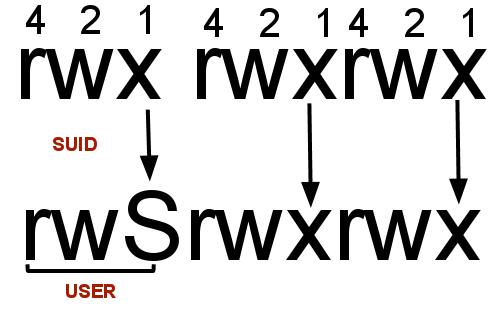
Use ls –l to check if the x in owner permissions field is replaced by s or S
For example: file1.txt listing before and after SUID set
Before SUID set:
ls -l
total 8

-rwxr--r-- 1 xyz xyzgroup 148 Dec 22 03:46 file1.txt
After SUID set:
ls -l
total 8

-rwsr--r-- 1 xyz xyzgroup 148 Dec 22 03:46 file1.txt
Some FAQ’s related to SUID:
A) Where is SUID used?
1) Where root login is required to execute some commands/programs/scripts.
2) Where you dont want to give credentials of a perticular user and but want to run some programs as the owner.
3) Where you dont want to use sudo command but want to give execute permission for a file/script etc.
B) I am seeing “S” I.e. Capital “s” in the file permissions, what’s that?
After setting SUID to a file/folder if you see ‘S’ in the file permission area that indicates that the file/folder does not have executable permissions for that user on that particular file/folder.
For example see below example
chmod u+s file1.txt
ls -l
-rwSrwxr-x 1 surendra surendra 0 Dec 27 11:24 file1.txt
If you want to convert this S to s then add executable permissions to this file as show below
chmod u+x file1.txt
ls -l
-rwsrwxr-x 1 surendra surendra 0 Dec 5 11:24 file1.txt
you should see a smaller ‘s’ in the executable permission position now.
SUID with execute permissions:

SUID with out execute permissions:
C) How can I find all the SUID set files in Linux/Unix.
find / -perm +4000
The above find command will check all the files which is set with SUID bit(4000).
D) Can I set SUID for folders?
Yes, you can if its required(you should remember one thing, that Linux treats everything as a file)
E) What is SUID numerical value?
It has the value 4 for SUID.

Wednesday, 5 September 2012

Shell script to Monitor Server services


#!/bin/sh
pro=`ps ax | grep /usr/sbin/httpd | grep -v grep | cut -c1-5 | paste -s -`
if [ "$pro" ];
then
echo "Apache is running"
Apache=1
else
echo "Apache is not running"
Apache=0
fi

pro1=`ps ax | grep /usr/sbin/dk-filter | grep -v grep | cut -c1-5 | paste -s -`
if [ "$pro1" ];
then
echo "dkim is running"
dkim=1
else
echo "dkim is not running"
dkim=0
fi

pro2=`ps ax | grep sendmail | grep -v grep | cut -c1-5 | paste -s -`
if [ "$pro2" ];
then
echo "Sendmail is running"
Sendmail=1
else
echo "Sendmail is not running"
Sendmail=0
fi

pro3=`ps ax | grep /usr/sbin/named | grep -v grep | cut -c1-5 | paste -s -`
if [ "$pro3" ];
then
echo "named is running"
named=1
else
echo "named is not running"
named=0
fi

pro4=`ps ax | grep /usr/libexec/postfix/master | grep -v grep | cut -c1-5 | paste -s -`
if [ "$pro4" ];
then
echo "postfix is running"
postfix=1
else
echo "postfix is not running"
postfix=0
fi

pro5=`ps ax | grep /usr/libexec/mysqld | grep -v grep | cut -c1-5 | paste -s -`
if [ "$pro5" ];
then
echo "mysqld is running"
my=1
else
echo "mysqld is not running"
my=0
fi

pro6=`service iptables status | egrep '^Table:'`
if [ "$pro6" ];
then
echo "Firewall is running"
iptables=1
else
echo "Firewall is not running"
iptables=0
fi

pro7=`ps ax | grep /usr/sbin/sshd | grep -v grep | cut -c1-5 | paste -s -`
if [ "$pro7" ];
then
echo "sshd is running"
ssh=1
else
echo "sshd is not running"
ssh=0
fi

pro8=`ps ax | grep /usr/sbin/pmtad | grep -v grep | cut -c1-5 | paste -s -`
if [ "$pro8" ];
then
echo "PMTA is running"
PMTA=1
else
echo "PMTA is not running"
PMTA=0
fi


pro9=`ps ax | grep crond | grep -v grep | cut -c1-5 | paste -s -`
if [ "$pro9" ];
then
echo "crond is running"
crond=1
else
echo "crond is not running"
crond=0
fi

MEM= free | grep Mem | awk '{ printf("Free Memory: %.4f %\n", $4/$2 * 100.0) }'

Friday, 17 August 2012

How To Secure FTP Server


How To Secure FTP Server

As popular as FTP is FTP communication is not secure, all communication is plain text and can be easily captured. Despite this serious weakness, few do anything to secure it. There are simple ways to correct this with VSFTPD.

SSL/TLS With FTP
FTPS is also known as FTPS Secure or FTP-SSL.  What FTPS does is add the Transport Layer Security (TLS) and the Secure Sockets Layer (SSL) to the normal FTP on the same port 21.  It is easy to confuse FTPS on port 21 with SFTP which is actually SSH on port 22.

Add these settings to your /etc/vsftpd.conf file and you will have an anonymous ftp server that will allow anyone to download files from /var/ftp but they cannot upload. It will also protect all of your users as they must ftp into their home accounts using ssl.

anonymous_enable=YES
local_enable=YES
rsa_cert_file=/ etc/vsftpd.pem
ssl_enable=YES
force_local_logins_ssl=YES
force_local_data_ssl=YES
ssl_tlsv1=YES
ssl_sslv2=YES
ssl_sslv3=YES

You do not need to create the self-signed certificate as they are already created by the vsftpd server as you can see listed. Notice that ssl is enabled only for local logins, users who have accounts on the machine. The connection will still be on port 21. Once you have the server set up you will need a client that is ftps compatible.

Create Self-Signed Certificate
You can create a self-signed certificate with this command which will create a certificate for 1 year and the pem file is then saved in the /etc/directory. Note that you will need to change the /etc/vsftpd.conf file to enter the path of this file. You will be asked several questions which will identify your organization.

# openssl req -x509 -nodes -days 365 -newkey rsa:1024 -keyout /etc/vsftpd.pem -out /etc/vsftpd.pem
Generating a 1024 bit RSA private key
……++++++
..++++++
writing new private key to ‘/etc/vsftpd.pem’
—–

You are about to be asked to enter information that will be incorporated into your certificate request.What you are about to enter is what is called a Distinguished Name or a DN.
There are quite a few fields but you can leave some blank
For some fields there will be a default value,
If you enter ‘.’, the field will be left blank.
—–
Country Name (2 letter code) [AU]:US
State or Province Name (full name) [Some-State]:MT
Locality Name (eg, city) []:Trout Creek
Organization Name (eg, company) [Internet Widgits Pty Ltd]:Example LTD
Organizational Unit Name (eg, section) []:
Common Name (eg, YOUR name) []:example.com
Email Address []:fsmith@example.com

Edit /etc/vsftpd.conf and comment out the rsa certificate and private key files that are there by default and add these lines which show the path to your self-signed certificate.

rsa_cert_file=/etc/vsftpd.pem
rsa_private_key_file=/etc/vsftpd.pem
Restart the ftp server.
service vsftpd restart

Using a FTP Client that is SSL/TLS Compatible

The popular Linux ftp client gFTP will not connect using SSL when you are using self-signed certificates, you would have to purchase a real certificate for your business. Another Linux alternative is to use ftp-ssl. This is a command line version of ftp and actually will replace ftp with this client. It functions that same as ftp. It will attempt to connect using ssl, if it is not enabled it will drop back to regular ftp. The Filezilla version for Linux continued to crash when the connection was made, so it is not a reliable option.
When you connect you will be asked to accept the self-signed certificate, either which you made or the default for vsftp.
Accept the certificate and you have encrypted FTP on port 21.
If you have users connecting with FileZilla for Windows, which is reliable, you will need to make these changes so they can log in with SSL. Note the port is still 21 but the Servertype is now FTP over SSL.

How to trace what’s being done by user’s on your Linux Server

How to trace what’s being done by user’s on your Linux Server 

Intrusions can take place from both authorized (insiders) and unauthorized (outsiders) users. My personal experience shows that unhappy user can damage the system, especially when they have a shell access. Some users are little smart and removes history file (such as 
~/.bash_history) but you can monitor all user executed commands.

It is recommended that you log user activity using process accounting. Process accounting allows you to view every command executed by a user including CPU and memory time. With process accounting sys admin always find out which command executed at what time :)

The psacct package contains several utilities for monitoring process activities, including ac, lastcomm, accton and sa. 

The ac command displays statistics about how long users have been logged on. 
The lastcomm command displays information about previous executed commands. 
The accton command turns process accounting on or off. 
The sa command summarizes information about previously executed commmands. 

Install psacct or acct package 

Use up2date command if you are using RHEL ver 4.0 or less 

# up2date psacct 

Use yum command if you are using CentOS/Fedora Linux / RHEL 5: 

# yum install psacct 

Use apt-get command if you are using Ubuntu / Debian Linux: 

$ sudo apt-get install acct OR # apt-get install acct 

Start psacct/acct service 

By default service is started on Ubuntu / Debian Linux by creating /var/account/pacct file. But under Red Hat /Fedora Core/Cent OS you need to start psacct service manually. Type the following two commands to create /var/account/pacct file and start services: 

# chkconfig psacct on 

# /etc/init.d/psacct start

Now let us see how to utilize these utilities to monitor user commands and time. 

Display statistics about users' connect time 

ac command prints out a report of connect time in hours based on the logins/logouts. A total is also printed out. If you type ac without any argument it will display total connect time: 

[santosh@Redhat ~]$ ac 

total 53.17 

Display totals for each day rather than just one big total at the end: 

[santosh@Redhat ~]$ ac -d 

Jul 23 total 19.65 

Aug 5 total 12.10 

Aug 6 total 20.67 

Today total 0.80 

Display time totals for each user in addition to the usual everything-lumped-into-one value: 

[santosh@Redhat ~]$ ac -p 

santosh 0.09 

raj 0.97 

root 47.07 

sohan 5.11 

total 53.24 

find out information about previously executed user commands 

Use lastcomm command which print out information about previously executed commands. You can search command using usernames, tty names, or by command names itself. 

Display command executed by santosh user: 

[santosh@Redhat ~]$ lastcomm santosh 

lastcomm santosh pts/2 0.00 secs Tue Aug 7 07:18 

ac santosh pts/2 0.00 secs Tue Aug 7 07:17 

ac santosh pts/2 0.00 secs Tue Aug 7 07:16 

ac santosh pts/2 0.00 secs Tue Aug 7 07:16 

grep santosh pts/2 0.00 secs Tue Aug 7 07:11 

dircolors santosh pts/2 0.00 secs Tue Aug 7 07:11 

bash F santosh pts/2 0.00 secs Tue Aug 7 07:11 

tput santosh pts/2 0.00 secs Tue Aug 7 07:11 

tty santosh pts/2 0.00 secs Tue Aug 7 07:11 

Search the accounting logs by command name: 

[santosh@Redhat ~]$ lastcomm useradd 

useradd S root pts/1 0.10 secs Tue Aug 7 07:11 

useradd F root pts/1 0.00 secs Tue Aug 7 07:11 

useradd F root pts/1 0.00 secs Tue Aug 7 07:11 

useradd F root pts/1 0.00 secs Tue Aug 7 07:11 

useradd F root pts/1 0.00 secs Tue Aug 7 07:11 

Search the accounting logs by terminal name pts/1 

[santosh@Redhat ~]$ lastcomm pts/1 

passwd S root pts/1 0.04 secs Tue Aug 7 07:11 

useradd F root pts/1 0.00 secs Tue Aug 7 07:11 

psacct root pts/1 0.01 secs Tue Aug 7 07:11 

touch root pts/1 0.00 secs Tue Aug 7 07:11 

accton S root pts/1 0.00 secs Tue Aug 7 07:11 

Summarizes accounting information 

Use sa command to print summarizes information about previously executed commands. In addition, it condenses this data into a summary file named savacct which contains the number of times the command was called and the system resources used. The information can also be summarized on a per-user basis; sa will save this iinformation into a file named usracct. 

[santosh@Redhat ~]$ sa 

4 0.36re 0.12cp 31156k up2date 

216 1.82re 0.02cp 647k 

19 1.64re 0.02cp 642k ***other* 

2 0.01re 0.00cp 4123k rhsmd 

48 0.01re 0.00cp 649k find 

33 0.01re 0.00cp 504k tmpwatch 

2 0.01re 0.00cp 662k logrotate 

54 0.14re 0.00cp 687k awk 

14 0.00re 0.00cp 498k basename 

13 0.00re 0.00cp 495k logger 

12 0.00re 0.00cp 743k makewhatis* 

3 0.00re 0.00cp 505k tr 

3 0.00re 0.00cp 496k renice 

3 0.00re 0.00cp 507k rm 

2 0.00re 0.00cp 596k grep 

2 0.00re 0.00cp 742k prelink* 

2 0.00re 0.00cp 742k makewhatis.cron* 

2 0.00re 0.00cp 551k sed 

2 0.00re 0.00cp 495k ionice 

Take example of first line: 

4 0.36re 0.12cp 31156k up2date 

Where, 

0.36re "real time" in wall clock minutes 
0.12cp sum of system and user time in cpu minutes 
31156k cpu-time averaged core usage, in 1k units 
up2date command name 

Display output per-user: 

# sa -u 

root 0.00 cpu 595k mem accton 

root 0.00 cpu 12488k mem initlog 

root 0.00 cpu 12488k mem initlog 

root 0.00 cpu 12482k mem touch 

root 0.00 cpu 13226k mem psacct 

root 0.00 cpu 595k mem consoletype 

root 0.00 cpu 13192k mem psacct * 

root 0.00 cpu 13226k mem psacct 

root 0.00 cpu 12492k mem chkconfig 

postfix 0.02 cpu 10696k mem smtpd 

santosh 0.00 cpu 19328k mem userhelper 

santosh 0.00 cpu 13018k mem id 

santosh 0.00 cpu 13460k mem bash * 

lighttpd 0.00 cpu 48240k mem php 

Display the number of processes and number of CPU minutes on a per-user basis 

[root@Redhat ~]# sa –m 

root 566 3.44re 0.22cp 991k 

postfix 2 0.21re 0.00cp 3138k

Thursday, 16 August 2012

Virtual I/O Server - Some Commands

Virtual I/O Server - Some Commands

Initialize the LPAR Configuration :

# mkgencfg -o init

[OS] Software Management :

To display VIO Server level:

# ioslevel

To update the IOS software:

# updateios –dev /update -

To installs a new filesets (mainly used for TL updates):

# updateios –dev /cd0 -install -accept

To commit all applied :

# updateios –commit

To rejects all uncommitted updates :

# updateios –reject

To clean all incomplete pieces of the previous installation :

# updateios –clean

To remove a fileset :

# updateios –remove fileset_name

To take the OS backup in a CD ROM :

# backupios –cd /dev/cd1 -cdformat

To take the OS backup in a DVD-RAM :

# backupios –cd /dev/cd1 -udf

To take the OS backup in a tape drive :

# backupios –tape /dev/rmt0

Just verifies the backup available in a tape :

# backupios –tape /dev/rmt0 -verify

Generates backup to a file. No user VGs are -nosvg back’d up :

# backupios –file /opt/file1

To display the underlying AIX OS version :

# oem_platform_level

To open a non-restricted root shell :

# oem_setup_env

This shell is used mainly for the installation of vendor software such as device drivers.

Remote Management :

To enable remote_management using NIM master :

# remote_management nim1

To disable remote management :

# remote_management –disable

License Management:

To display the current license :

# license –view

To accept the license :

# license –accept

To view if the license has been accepted :

# license

Software Management:

To list all the installed software :

# lssw

To list all the installed software and their history

# lssw –hist

Management of Virtual Terminals:

To open a virtual terminal for partition with id 2 :

# mkvt –id

To close a virtual terminal for a partition with id 2 :

# rmvt –id 2

Device Management:

To change the attribute of a device permanently.

# chdev -dev scsi0 -attr id=6 -perm

Sometimes it reboots the system if perm is used

To disable the path between hdisk1 and scsi0 :

# chpath -dev hdisk1 -pdev scsi0 -op disable

To configures the devices in the VIO server :

# cfgdev

To configures the devices attached to scsi0 adapter :

# cfgdev –dev

To unconfigure the cd-rom device :

# rmdev –dev cd0

To unconfigure scsi adapter and its child devices :

# rmdev –recursive –dev scsi1

To unconfigures the children of pci1 but not the PCI bus pci1 :

# rmdev –pdev pci1

Management of Virtual/Shared Devices:

To create a virtual target device that maps lv20 as a virtual disk for a client partition hosted by the vhost0 virtual server adapter :

# mkvdev -vdev lv20 -vadapter vhost0

Same as above except here hdisk is used instead of a logical volume :

# mkvdev -vdev hdisk6 -vadapter vhost2

To create a SEA that maps the physical Ethernet adapter ent4 as a virtual adapter for the client
partitions served by the virtual Ethernet adapters ent6 and ent7, using ent6 as the default adapter and 8 as the default id :

# mkvdev -sea ent4 -vadapter ent6,ent7 -default ent6 -defaultid 8

To remove a virtual target device vtscsi9 along with its backing lv :

# rmvdev –vdev vtscsi9 –

To remove all virtual target device associated with backing device lv001 :

# rmvdev –vdev lv001

To remove a specific virtual target device :

# rmvdev –vtd vtscsi10

List Device Mapping:

To list all virtual target devices and backing devices mapped to virtual server adapter vhost2 :

# lsmap -vadapter vhost2

To list SEA and physical device mapped to virtual Ethernet Adapter ent4 :

# lsmap -vadapter ent4 –net

To list all virtual target devices and backing devices where backing devices are of type LV :

# lsmap -all -type lv

To list all network mapping :

# lsmap –all –net

How to list Devices :

To display all the devices :

# lsdev

To display all the virtual devices :

# lsdev –virtual

To display all the virtual adapters :

# lsdev –type adapter –virtual

To display all the slots :

# lsdev –slot s

To display all the adapters :

# lsdev –type adapter

Few other device types: disk, lv, optical, tape, tty

To list all physical Ethernet adapters and Etherchannel available for creating a SEA :

# lsdev –type ent4sea

To list all virtual Ethernet adapters available for creating a SEA :

# lsdev –type ven4sea

To list all adapters over which ip address can be configured :

# lsdev –type ent4ip

To display parent device of a device :

# lsdev –dev hdisk0 –

To list disks names and physical location alone :

# lsdev -type disk -field name physloc

Logical Volume Manager :

Volume Group

To create a vg on hdisk1 :

# mkvg -vg newvg hdisk1

To drain I/O's for a vg and suspends future I/O's :

# chvg -suspend vg03

To resume normal I/O operations for a vg :

# chvg -resume vg03

Unlock a VG if left in a locked state by abnormal termination of another lvm operation :

# chvg -unlock vg03

To add a physical volume to a volume group :

# extendvg vg3 hdisk3

To remove a PV from a VG :

# reducevg vg01 hdisk1

To remove a PV and all residing LVs from a VG with no confirmation :

# reducevg –rmlv –f vg01

To activate a vg :

# activatevg vg03

To deactivate a vg :

# deactivatevg vg03

To mirror the VIO Server’s rootvg to hdisk4 and reboots VIO Server :

# mirrorios –force hdisk4

To mirror the VIO Server’s rootvg to hdisk4 but don’t reboot the server :

# mirrorios –defer hdisk4

To remove the rootvg mirror from hdisk4 :

# unmirrorios hdisk4

To import a VG from hdisk07 :

# importvg –vg vg001 hdisk07

To export a VG :

# exportvg vg3

Note: Volume Group containing a paging space can’t be exported

To sync a VG :

# syncvg –vg vg01

To sync a LV :

# syncvg –lv lv001

To sync a PV :

# syncvg –pv hdisk4 hdisk5

To redefine a VG based on the VGDA from hdisk04 :

# redefvg –dev hdisk04

Logical Volume :

To create a logical volume of size 1MB in vg01 :

# mklv –lv lv001 vg01 1M hdisk1

To create a logical volume with mirror in place in vg01 of size 1GB :

# mklv –mirror vg01 1G

To extend an LV by 3MB :

# extendlv lv01 3M

To extend an LV by 1GB with space taken from hdisk5 :

# extendlv lv01 1G hdisk5

To remove a logical volume :

# rmlv lv05

To display the properties of a logical volume :

# lslv lv03

To display info about LV by Physical volume :

# lslv –pv lv03

To display LVs that can be used as backing devices :

# lslv –free

To make a copy for lv01 in hdisk03 :

# mklvcopy lv01 hdisk03

To remove lv01’s copy from hdisk03 :

# rmlvcopy lv01 hdisk03

To copy the contents of lv01 to lv02 :

# cplv lv01 lv02

To copy the contents of lv01 to a new lv in vg01 :

# cplv –vg vg01 lv01

To change the name of oldlv to newlv :

# chlv –lv newlv oldlv

Physical Volume

To display all physical volumes in the system :

# lspv

To display the status and characteristics of hdisk03 :

# lspv hdisk03

To list all the available PVs used as virtual SCSI backing devices :

# lspv –avail

To list PVs that can be used as virtual SCSI backing devices and are not currently a backing device :

# lspv –free

To move physical partitions from hdisk1 to hdisk2 :

# migratepv hdisk1 hdisk2

To move physical partitions in lv01 from hdisk1 to hdisk2 :

# migratepv –lv lv01 hdisk1 hdisk2

Storage Pool Management:

To create storage pool “client_data” using hdisk3 hdisk4 hdisk3 and hdisk4 :

# mksp -f client_data

To set client_data storage pool as default :

# chsp –default client_data

To list all storage pools :

# lssp

To list the default storage pool :

# lssp –default

To list the backing device in rootvg storage pool :

# lssp –bd –sp rootvg

To attach a storage from a storage pool to a Virtual SCSI adapter:

# mkbdsp -bd lv001 -vadapter vthost2 -tn vtscsi9

To removes storage from a Virtual SCSI adapter, and removes the backing device :

# rmbdsp –bd lv001

To remove storage from a Virtual SCSI adapter, And makes sure backing device is not deleted :

# rmbdsp –bd lv001 -savebd

To removes storage from a Virtual SCSI adapter, and removes the backing device :

# rmbdsp –vtd vtscsi9

To removes storage from a Virtual SCSI adapter. and makes sure backing device is not deleted :

# rmbdsp –vtd vtscsi8 -savebd

Network Configuration :

TCP/IP Configation:

To configure tcpip on a network interface :

# mktcpip -hostname sys01vio2 -inetaddr 9.47.90.113 -interface en2 -netmask 255.255.255.0 -gateway 9.47.90.1 -nsrvdomain yahoo.com -start

To display the stored tcp/ip configuration in the system :

# lstcpip –stored

To display ethernet adapters on the system :

# lstcpip –adapters

To display the system hostname :

# lstcpip –hostname

To display DNS name servers in search order and domain name :

# lstcpip –namesrv

To display the routing table :

# lstcpip –routtable

To display routing table in numeric output instead of hostname :

# lsctpip –num –routtable

To display all the open inet sockets :

# lstcpip –sockets –family inet

To display the status of all configured interfaces :

# lstcpip –state

To remove all TCP/IP configuration :

# rmtcpip –all

To unconfigure tcpip in en0:

# rmtcpip –interface en0

To cleanup static routing table :

# rmtcpip –f -routing

To remove IP information from en0 after reboot :

# rmtcpip –f –interface en0 -nextboot

To remove DNS information and clears the hosts file :

# rmcpip –namesrv

Managing IP address-to-host name Mapping Entries:

To add IP address-to-host name mapping entry :

# hostmap -addr 192.100.1.7 -host alpha

To list all IP address-to-host name mapping entries :

# hostmap –ls

To delete the IP address-to-host name mapping entry :

# hostmap-rm 192.100.1.7

Managing Network Services:

To enable all the network services :

# startnetsvc ALL

To enable the telnet daemon :

# startnetsvc telnet

To enable the ftp daemon :

# startnetsvc ftp

To enable the ssh daemon :

# startnetsvc ssh

To enable the ldap daemon :

# startnetsvc ldap

To enable the cimserver daemon :

# startnetsvc cimserver

To enable the xntpd daemon :

# startnetsvc xntpd

To send CLI tracing details to the system log :

# startnetsvc tracelog

To send system error to the system log :

# startnetsvc errorlog

To disable all the network services :

# stopnetsvc ALL

To disable the telnet daemon :

# stopnetsvc telnet

To disable the ftp daemon :

# stopnetsvc ftp

To disable the ssh daemon :

# stopnetsvc ssh

To disable the ldap daemon :

# stopnetsvc ldap

To disable the cimserver daemon :

# stopnetsvc cimserver

To disable the xntpd daemon :

stopnetsvc xntpd

To stop sending CLI tracing details to system log :

# stopnetsvc tracelog

To stop sending system error log to the system log :

# stopnetsvc errorlog -

To display the status of ftp network service :

# lsnetsvc ftp

Managing DNS, Domain and Search Order Entries:

To add a domain entry :

# cfgnamesrv -add -dname abc.aus.century.com

To add a name server entry :

# cfgnamesrv –add -ipaddr 192.9.201.1

To display all the DNS entries :

# cfgnamesrv -ls

Network Tuning Parameters:

To display the maximum size of the mbuf pool :

# optimizenet –get thewall

To set a machine as internet work router over TCP/IP networks :

# optimizenet –set ipforwarding=1

To display information on udp_recvspace :

# optimizenet –h udp_recvspace

Network Monitoring:

To display all the statistics, including the device- specific statistics :

# entstat ent0

To reset all the statistics back to their initial values :

# entstat –reset ent0

To display the route to a particular host :

# traceroute nis.nsf.net

System Monitoring :

To display the summary of current system activity :

# sysstat

To display the system statistics :

# topas

System Management Commands:

To halt the operating system :

# shutdown

To halt the operating system forcibly :

# shutdown –force

To reboot the vio server :

# shutdown –restart

To invalidate the boot list for service mode :

# bootlist -mode service –rm

To display the boot list for service mode :

# bootlist -mode service –ls

To set the boot list for normal mode :

# bootlist –more normal hdisk0

To display the complete detailed error report :

# errlog –ls

To remove all the error log entries :

# errlog –rm 0

To remove the error log entries older than 5 days :

# errlog –rm 5

To change the system date and time :

# chdate -day 12 -month 10 -year 2004 -hour 16 -minute 30

To change the language for the entire system to French Canadian :

# chlang -lang fr_CA

To display available languages :

# chlang –ls

To perform hardware problem determination and maintenance :

# diagmenu

To generate report on microcode levels of all the devices :

# invscout –report

To display the vpd survey of the partition :

# invscout –vpd

To append the current MOTD [Message Of The Day] :

# motd –append “Message”

To overwrite MOTD :

# motd –overwrite -file filename

To do the initial configuration of VIO Server :

# cfgassist

It is like configuration assitant in AIX.

To do filesystem scan :

# fsck /dev/lv01

To display exported (nfs) directories on a remote server :

# showmount hostname

To start system dump on the primary device :

# startsysdump

To display continuous disk report on disk1 at 2sec interval :

# viostat -disk disk1 2

To display adapter throughput reports :

# viostat –adapter

To display system and adapter throughput reports :

# viostat –sys –adapter

To gather system info and to store it in the floppy disk :

# snap -general -dev /dev/rfd0

To display microcode levels of all devices :

# lsfware –all

Managing Agents:

To start an agent : # startsvc agent_name

To stop an agent: # stopsvc agent_name

To display an agent's configuration information :

# lssvc agent_name

To display all the available agents :

# lssvc

To display the attributes associated with ITSM_base agent :

# cfgsvc –ls ITM_base

To display the ITM_base agent ssh public key :

# cfgsvc -key ITM_base

User Management:

To create a user :

# mkuser

To change an attribute of a user :

# chuser

To display the properties of a user :

# lsuser

To remove a user from the system :

# rmuser

To set/reset password for a user :

# passwd

Security Commands:

To display all failed logins :

# lsfailedlogin

To display the contents of global command log :

# lsgcl

To displays high system settings :

# viosecure -level high

To apply all of the high system settings to the system :

# viosecure -level high –apply

To displays the current system settings :

# viosecure –view

To allow IP activity on the ftp-data, ftp, ssh, www, https, rmc, and cimon ports, and to deny other IP activity :

# viosecure –firewall on

To enable IP activity on all ports :

# viosecure –firewall off

To display the list of allowed ports :

# viosecure -firewall view

Wednesday, 15 August 2012

Checklist for DLPAR setup (RSCT)

 Checklist for DLPAR setup (RSCT)

It is strongly recommended that the Hardware Management Console (HMC) be upgraded to Release 3, Level 2.2.x or above to minimize setup time for dynamic logical partitioning (DLPAR) operations. Run hsc version to find out the HMC's version number. The LPAR AIX should also be upgraded to 5.1F or 5.20 or later.

Table 1. Requirements

Verify> Command -> Result -> Action
1HMC levelClick Help then About on the HMC main window. This should be release 3 version 2.4 or higher. I encourage you to get the latest software, at HMC Corrective Service.
2AIX filesets required for DLPAR (on each LPAR/SMP)AIX level should 5.2 or later. These filesets should be on partitions:
> lslpp -l rsct.core*
> lslpp -l csm.client
The missing fileset can be installed from the AIX installation CD.

Use the tables in this section as a checklist for your DLPAR setup.


Table 2. Verify whether the required software is functional

VerifyVerify Result and Action
1HMC daemons are running> su - root
> lssrc -a
SubsystemGroupPIDStatus
ctrmcrsct822active
IBM.DMSRMrsct_rm906active
IBM.LparCmdRMrsct_rm901active
If these daemons are active go to step 2. If any of the daemons show as inoperative, start it manually by > startsrc -s <subsystem name>. For example, startsrc -s ctrmc
If a daemon can't be started, please contact IBM service personnel.
2AIX daemons are running (on each LPAR/SMP with AIX 5.20)> su - root
> lssrc -a | grep rsct
SubsystemGroupPIDStatus
ctrmcrsct21044active
IBM.CSMAgentRMrsct_rm 21045active
IBM.ServiceRMrsct_rm11836active
IBM.DRMrsct_rm20011active
IBM.HostRMrsct_rm 20012active
IBM.DRM and IBM.HostRM are "lazy started" resource managers; they're only started when they get used. If IBM.DRM and IBM.HostRM are inoperative, there's a good chance you're having network/hostname setup problem between HMC and the LPAR. To correct this, see Table 3. Verify Your RMC/DLPAR setup, below.
If AIX is 51G, 52B or above, ctcas is also a lazy started RM, meaning it can stay inoperative until they get used, so it's not necessary to start it if your LPAR is at these levels or later.
If any of the daemons show as inoperative, use > startsrc -s <subsystem name>. For example, startsrc -s IBM.CSMAgentRM.

ctrmc
Is a Resource Monitoring and Control (RMC) subsystem.
ctcas
Is for security verification. It is a lazy started resource manager and does not have to run in order for DLPAR to work.
IBM.DMSRM
Is for tracking status of partitions.
IBM.LparCmdRM
Is for DLPAR operation on HMC.
IBM.CSMAgentRM
Is for handshaking between the LPAR and HMC.
IBM.DRM
Is for executing the DLPAR command on the LPAR.
IBM.HostRM
Is for obtaining OS information.

Table 3. Verify your RMC/DLPAR network/hostname setup

Verify>Result and Actions
1HMC: List partitions authenticated by RMC> /opt/csm/bin/lsnodes -a Statuspartition01 1
partition02 0
partition03 1
Where 1 means LPAR is activated and authenticated for DLPAR; 0 means otherwise.
If the LPAR is activated and still shows Active<0>, you could have either network or hostname setup problems. If you have just rebooted the HMC, wait for a few minutes. If nothing changes after that, check your hostname/network setup in Setting up HMC/partitions hostname and network.
2HMC: List partitions recognized by DLPAR> lspartition -dlpar <#0> Partition:<001, partition01.company.com, 9.3.206.300> Active:<1>, OS:<AIX, 5.2>, DCaps:<0xf>, CmdCaps:<0x1, 0x0>
<#1> Partition:<002, partition02.company.com, 9.3.206.300> Active:<0>, OS:<AIX, 5.2>, DCaps:<0xf>, CmdCaps:<0x1, 0x0>
<#2> Partition:<003, partition03.company.com, 9.3.206.300> Active:<0>, OS:<, 5.1F>, DCaps:<;0x0>, CmdCaps:<0x0, 0x0>
If all active AIX 5.2 partitions are listed as Active<1>, ..., DCaps:<0xf> your system has been set up properly for DLPAR, and you can skip the checklist now. (In this example, LPAR 002 is being shut down, and LPAR 003 is not activated because it is at AIX 5.1.)
If you're missing some active partitions or some partitions are reported as Active<0>, your system probably still has a network/hostname set up problem. See Setting up the HMC/partitions hostname and network. (If your LPAR is Active<1> but the GUI is still not DLPAR capable, do a rebuild to get around this problem. See the Appendixes in this article for more information.)
If you still can't get partitions recognized by DLPAR after verifying the checklist, contact IBM service personnel.
3AIX: Ensure /var directory is not 100% full (on each LPAR/SMP)> dfIf /var is 100% full, use smitty to expand it. If there is no more space available, visit subdirectories to remove unnecessary files (using trace.*, core, and so on). After expanding the /var directory, execute the following commands to fix possibly corrupted files:
> rmrsrc -s "Hostname!='t' " IBM.ManagementServer
> /usr/sbin/rsct/bin/rmcctrl -z
> rm /var/ct/cfg/ct_has.thl
> rm /var/ct/cfg/ctrmc.acls
> /usr/sbin/rsct/bin/rmcctrl -A
4AIX: Verify if you have network problem (from each LPAR/SMP)> ping <hmc_hostname>If ping fails, check your hostname/network setup. See Setting up HMC/partitions hostname and network.
5AIX: Verify LPAR(s) to HMC authentication (from each LPAR/SMP)> CT_CONTACT=<HMC name> lsrsrc IBM.ManagedNodeYou should get a list of resource classes on HMC.
If there is any error, you probably have network/hostname problem, please refer to section Setting up HMC /Partition(s) Hostname and Network.
6HMC: Verify network setup by telnet-ing into each LPAR(s) from the HMC> telnet <hostname>
> Ctrl c or exit to end If you can't telnet, you have a network problem. See Setting up HMC/partitions hostname and network.
7HMC: Verify HMC to LPAR(s) authentication> CT_CONTACT =<lpar_hostname> lsrsrc IBM.ManagementServerIf nothing is displayed or if there are any errors, you probably have a hostname problem. See Setting up HMC/partitions hostname and network.

For older releases of AIX (pre 5.1F and 2.0) or HMC (release 3, version 1.x or earlier), the hostname format, long or short, also requires some setup. Please refer to the Appendixes for further set up instructions if your HMC or partitions are at these levels.
Most DLPAR problems we've encountered from the test labs have been improper network. This section tries to reduce these network setup and configuration problems.
First, find out the IP address and hostname format of the HMC and its LPAR(s), which can be determined by using the command hostname on the HMC and AIX system respectively, then use host return_from_hostname to verify it. For example,
> hostname
Partition.company.com
> host Partition.company.com
Partition.company.com has address 9.3.14.199

If DNS is off or if the HMC and partitions are on different subnets
The HMC and LPAR(s) /etc/hosts files need to be modified to contain the correct entries for the HMC and all partitions' hostnames. Put the host name in /etc/hosts for HMC and all partitions (names are case sensitive).
Make sure that on the LPAR(s) (just LPAR), the file /etc/netsvc.conf exists with one line: hosts=local,bind.
Refresh RMC by either rebooting or
  > /usr/sbin/rsct/bin/rmcctrl -z
  > /usr/sbin/rsct/bin/rmcctrl -A

Customers should add all the LPAR's hostnames to the /etc/hosts file on the HMC. The HMC hostname must be added to each LPAR /etc/hosts file. Because the customer does not have DNS data, we do not have a domain name, only a short hostname, so the DNS enabled box will not be enabled.

This appendix offers a variety of tips about accessing Linux and a variety of other things.
To access Linux on the HMC
To access the xterm on the HMC (Command Line Entry) you will need a PE passcode, which can be obtained from IBM support. To access the Linux command line:
  1. Log on HMC as hscpe user (user created by customer)
  2. Select Problem Determination (In "Service Applications" folder at Release 2.0 and above)
  3. Select Microcode Maintenance
  4. Enter serial number of the HMC and PE password obtained from support
  5. Select Launch xterm shell
Alternate way to open an Xterm on the HMC
If you have ssh set up, from the upper left corner click on Console then select Open Terminal Session, and enter your HMC hostname.
Use LAN Surveillance to check your network problem
Since HMC version 3.1, the LAN Surveillance feature has been added into Service Focal Point (SFP) to alert users if an LPAR is having a network/hostname setup/RMC authentication problem by reporting a SURVALNC Serviceable Event to the HMC. (Users can have e-mail set up for notification of this type of problem.) You can use "List Serviceable Events" to check for these errors; if there are none, you should not have problems with DLPAR/SFP. If there are errors, please go through the checklist to diagnose and correct the problem.
A quick way to verify if the system Network/Hostname is set up properly
From the HMC console, select "Server Management" then expand it to the LPAR level. Left click on an AIX 520 LPAR to get the pop-up menu, then select one of the items under "Dynamic Logical Partition" (for example, Memory). If you get the error messages
HMCERRV3DLPAR016: The selected logical partition is not enabled for 
dynamic logical partitioning operations

then there's a good chance the system is having a network/hostname setup problem. Please go through the checklist to diagnose and correct the problem. It's best to perform this procedure right after the HMC gets rebooted.
Check serial cable connection between HMC and CEC
On HMC:
> query_cecs  -  returns cecname
> get_cec_mode -m cecname  -  verifies connection to service processor

Checking for HMC version from ssh
Use the hsc version command.

This appendix provides answers to some common questions about RMC/DLPAR from the field.
Is there a relation between DLPAR/LparCmdRM and SFP/ServiceRM?
No, there is no relation between DLPAR and SFP. They are two independent daemons serving two different components. But, they're using the same RMC framework and thus subjected to the same authentication process, as well as the same network/hostname setup.
DLPAR is only supported on AIX 5.2; AIX 5.1x partitions will be not be initialized for DLPAR. It is correct to assume that if SFP works, DLPAR would work, but if DLPAR works, SFP might not be fully functional.
Authentication and authorization process between HMC and partitions
  1. On HMC: DMSRM pushes down the secret key and HMC hostname to NVRAM when it detects a new CEC. This process is repeated every 5 minutes. Each time an HMC is rebooted or DMSRM is restarted, a new key is used.
  2. On AIX: CSMAgentRM, through RTAS, reads the key and HMC hostname out from NVRAM. It will then authenticate the HMC. This process is repeated every 5 minutes on LPAR to detect new HMC(s) and key changes. An HMC with a new key is treated as a new HMC and will go though the authentication and authorization processes again.
  3. On AIX: After authenticating the HMC, CSMAgentRM will contact the DMSRM on HMC to create a ManagedNode resource in order to identify itself as an LPAR of this HMC. (At the creation time, the ManagedNode's Status attribute will be set to 127.) CSMAgentRM then creates a compatible ManagementServer resource on AIX.
  4. On AIX: After the creation of the ManagedNode and ManagementServer resources on HMC and AIX respectively, CSMAgentRM grants HMC permission to access necessary resource classes on the LPAR. After the granting HMC permission, CSMAgentRM will change its ManagedNode, on HMC, Status to 1. Without proper permission on AIX, the HMC would be able to establish a session with the LPAR but will not be able to query for OS information, DLPAR capabilities, or execute DLPAR commands afterward.
  5. On HMC: After the ManagedNode Status changed to 1, LparCmdRM querries for OS information, DLPAR capabilities, notifies CIMOM about the DLPAR capabilities of the LPAR, then waits for a DLPAR command from users. If the partitions support DLPAR capabilities, lsparittion -dlpar will list partitions with Active:<1> and DCaps:<0xf>.
What does the output of lspartition -dlpar mean?
Intended as a development tool, the output of lspartition -dlpar has following meaning:
<#0> Partition:<002, lpar.company.com, 9.8.206.215>
        Active:<1>, OS:<AIX, 5.2>, DCaps:<0xf>, CmdCaps:<0x1, 0x0>

Partition
<LParID, lpar_hostname, lpar IPaddress>
Active
<#>: - 0 means no session to lpar; 1 means otherwise
OS
<OSType, OSLevel>: Should be <AIX, 5.2> if it's Active<1>. If Active<1> and OS information is empty, this means the IBM.HostRM could have a problem on AIX. (I have not seen this happens yet!)
DCaps
<#>: - Value 0x0 means the LPAR does not support DLPAR operation. Value 0xf means all DLPAR operations are supported. Usually, this value goes together with the Active<1> above. The session must be established first before the information can be queried from the LPAR.
CmdCaps
<0x1, 0x0>: - No significant meaning for Release 3, version 1.x.x. In Release 3, version 2.2.x or above, the 0x1 means remote shutdown of the AIX LPAR can be done from the HMC.
Do IBM.DRM and IBM.HostRM need to be "Active" on partition for DLPAR to work?
No. IBM.DRM and IBM.HostRM are lazy start resource managers and could be in inoperative state if they're not used. They will be started as soon as the first IBM.DRM request is made from HMC. If lssrc -a on an LPAR shows IBM.DRM as inoperative, it is likely that HMC has never made a connection with the LPAR since it was rebooted or upgraded to a new level of AIX. In this case, on HMC, the command lspartition -dlpar would show the LPAR as Active<0>.
To diagnose and fix this type of problem, see "Table 3. Verify Your RMC/DLPAR Network/Hostname setup" in Checklist for DLPAR setup.
Does IBM.CSMAgentRM need to be active on HMC?
No. IBM.CSMAgentRM is not required for DLPAR/SFP. The CSMAgentRM .cdef file is shipped on HMC to support Distributed RMC, and therefore it will be listed as "inoperative."

Note: This section applies only to earlier versions of HMC and is here for reference only.
Most DLPAR problems we've encountered from the test labs have been improper network and hostname(s) setup. This section triess to reduce these network setup and configuration problems. For older releases of AIX (pre 5.1F and 2.0) or HMC (release 3, version 1.x or earlier), the hostname format, long or short, also requires some setup.
First, find out the hostname format that the HMC and its LPAR(s) are using -- short or long name. Your setup depends largely on the format of the hostname. The hostname format can be determined by typing the command hostname on the HMC and AIX system respectively, then use host return_from_hostname to verify it. For example:
> hostname
Partition.company.com
> host Partition.company.com
Partition.company.com has address 9.3.14.199

If DNS is On
This section is mostly applicable if the LPAR AIX level is at 5.1F/5.20 or ealier ,or HMC is at Release 3, version 1.x or ealier.
If the HMC and the partition(s) both use a long name
  • No hostname entry is needed in /etc/hosts on either AIX or the HMC.
  • If /etc/hosts has the hostname entry, the longname must be before the short name for HMC and all partitions (host names are case sensitive). For example,
    10.10.10.11    mymachine.mycompany.com      mymachine
  • After you update /etc/host file, refresh RMC by either rebooting or
      > /usr/sbin/rsct/bin/rmcctrl -z
      > /usr/sbin/rsct/bin/rmcctrl -A
Other hostname formats
If the hostname command returns the short name, put the short name before the long name in /etc/hosts on both HMC and the partitions. If the hostname command returns the long name, put the long name before the short name in the /etc/hosts file on HMC and all partitions (names are case sensitive). For example,
10.10.10.11    mymachine      mymachine.mycompany.com

Make sure that on the LPAR(s) (just lpar(s)), the file /etc/netsvc.conf exists with one line: hosts=local,bind
Refresh RMC by either rebooting or by commands
 > /usr/sbin/rsct/bin/rmcctrl -z
 > /usr/sbin/rsct/bin/rmcctrl -A

If DNS is Off
This section is mostly applicable if the LPAR AIX level is at 5.1F/5.20 or ealier, or HMC is at Release 3, version 1.x or ealier.
  • The HMC and LPAR(s) /etc/hosts file need to be modified to contain the correct entries for the HMC and all partitions' hostnames. If the hostname command returns the short name, put the short name before the long name in /etc/hosts for HMC and all partitions (names are case sensitive). If the hostname command returns the long name, put the long name before the short name in /etc/hosts for HMC and all partitions (names are case sensitive).
  • Make sure that on the LPAR(s) (just LPAR), the file /etc/netsvc.conf exists with one line: hosts=local,bind.
  • Refresh RMC by either rebooting or
      > /usr/sbin/rsct/bin/rmcctrl -z
      > /usr/sbin/rsct/bin/rmcctrl -A
Customers should add all the LPAR's hostnames to the /etc/hosts file on the HMC. The HMC hostname must be added to each LPAR /etc/hosts file. Because the customer does not have DNS data, we do not have a domain name, only a short hostname, therefore the DNS enabled box will not be enabled. 
Twitter Bird Gadget